Posts

Walkie Talkie in Teams...over...

Image
The Walkie Talkie feature is now available in Teams but is not getting too much attention from what I have seen. It is only available in Android so bear this in mind if you are going to deploy for your organisation. Its actually quite simple to implement in your organisation. To do this simply follow the proceeding steps: In the Microsoft Teams admin center , under Teams app > Setup policies, you should have A llow user pinning set to On . Then, under the Pinned Apps section, click +Add Apps . On the Add pinned apps panel that appears on the right, use the Search textbox to look for Walkie Talkie . When you have it as a search result, select the Add button to the right of the name to add it to your list. The Walkie Talkie app should now appear on the Pinned Apps list, and be available for use once you click the Save button. Walkie Talkie is available under all CALs that have Teams, which is good news, but remember only on Android devices. Now on your Android, open the Teams App,...


E164 number formatting in Excel

Image
 Excel can be a super tool for managing number phone number migrations but if like me you are fed up of seeing the numbers show up like this: OK... then let's change the format of the cell to Text , this fixes it...right? Wrong! Try to do a find and replace on tel: now and you will see it keeps removing the + from the prefix. I found a fix! In the Format Cells  window, under Category  select General , now in Type, type +# ?/? exactly like this: Apply this to the column or cells you want to have in the E164 format, now even if you don't type the + at the start, it will automatically put it in for you, format looks good and numbers are now correct!

How to pass O365 credentials automatically and securely for scheduled tasks

Image
With everything we can do in any O365 Admin Portal possible to do, even easier and better, in PowerShell, I have tried to create scripts to automate as much of my tasks as possible. When I run these manually its fine, I enter my credentials and approve my MFA popup on Authenticator App.  But what about scripts I want to run regularly, or automatically based on another event happening? Well, basically we need a few things. The first is to have an O365 Admin account, with only the bare minimum role we need, created and NOT enabled for MFA. This is a risk of course but if it can be restricted and controlled (think Conditional Access here) within your environment then this will be more of a benefit than it is a risk. Once we create this account, we now need to securely save the credentials somewhere so they can be used in an automated/scheduled task. Storing credentials securely Step 1: Store your credentials in a variable - for this session only On the server you are going to run ...

Unassigned Numbers in Microsoft Teams using Audiocodes SBC

Image
Unlike Skype for Business, Microsoft Teams does not natively support the handling of Unassigned numbers in the system. So if someone leaves your organisation and you remove the number from them and someone tries to call it, the call will drop. Technically, Teams will return a "404 Not Found" back to the SBC and back on to the telco. What we can do here is to then assign the 404 error to a Route, change the Destination Number (to a call queue or to your main Reception number for example) and route it back to Teams. To do this there are a few simple steps: Step 1 – Create an Alternative Reasons Set Step 2 – Configure existing Teams IP Group to use the SBC Alternative Routing Reason Set Step 3 - Create new IPG Step 4 – Create a new route in IP-to-IP Routing Step 5 - Manipulate Numbers Step 6 – Test  Step 1 – Create an Alternative Reasons Set The first thing we need to do is create an " Alternative Routing Set ", we find this under Setup >> Signaling & Media ...

Microsoft Teams FREE Audio Conferencing is coming.... (sort of)

Image
Good news (sort of), yesterday, Jared Spataro, the Corporate Vice President for Microsoft 365 announced in a blog post  that the Audio Conferencing Addon CAL will be included as part of all Enterprise and Business CALS from 1st March 2022. This means that users can host Teams meetings and all of them will include the PSTN Dial in number for over 70 countries and 44 languages, without the need for the additional Audio Conference Addon CAL as we need now (or have A5/E5). This sounds great right? Free !!..... well not quite free, while it will be included with the CAL, the CALs themselves are actually going up in price at the same time, so the following (List price increases) applies: Office 365 E1 from $8 to $10 per user per month Office 365 E3 from $20 to $23 per user per month Office 365 E5 from $35 to $38 per user per month Microsoft 365 Business Basic from $5 to $6 per user per month Microsoft 365 Business Premium from $20 to $22 per user per month Microsoft 365 E3 from $32 ...

We can't get the effective dial plan so the dial plan can't be tested

Image
 So I kept getting this error in Teams every time I opened the Dial Plans  section - "W e can't get the effective dial plan so the dial plan can't be tested " Arghh... I need to test the number manipulation I just put in, what is wrong here.... Well simple really, it basically requires that the user you are logged in as to have any license that covers the Teams product. So I assigned it the lowest license available (A1 for this customer), gave it a bit to replicate, logged back in again and off she went! Sounds obvious now right!

Teams Meetings Updates July 2021

Image
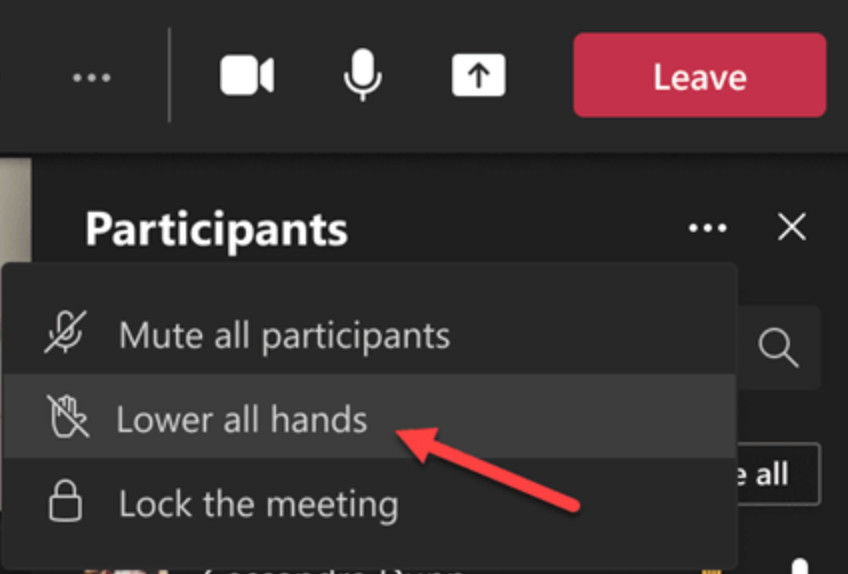
This month, as like all other months, Teams brings us some new and exciting features. This blog will focus on some of the main Meetings features released in June!  Lower all raised hands Lock the meeting Spotlight multiple users in a meeting Chat bubbles Inking and laser pointing in PowerPoint presentations First, we now have the option to Lower All Hands , this means that the presenter does not have to individually lower peoples hands (when they forget to themselves or simply don't bother) in one simple click: From the ellipses ( ... ) menu in the Participants  list, select Lower all hands . When participants raise their hands, this will now show in the order in which they raised their hands, with the first one to raise their hand on top of the list and so on... In this same menu, we can also Lock the meeting When we do this, we stop anyone else joining the meeting, this includes people directly invited or not. When we select this option, we will be prompted with the followin...

Teams Device Health Monitoring and Reporting

Image
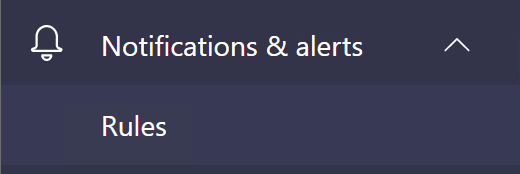
 Microsoft have snuck in a nice new feature into the Teams Admin Center (TAC). We now see a new Notifications and Alerts  menu tree and below this Rules. When we go in here, we find only a single Default  Device State Rule with no option to create any new rules (yet at least...) When we edit this rule, we can see that we now have an option to monitor specific devices (think meeting room devices, collaboration bars etc.. here) Under Device users  we click on +ADD  then enter the name of the account, or accounts if you are monitoring multiple devices, associated with the device, such as the resource account. Then under Actions  we can choose either Channel alert  - to have a nice alert sent to our Teams Channel   OR Webhook  to use webhooks for alerting. Finally ensure to select Active  then Save. Once set up this will take maybe 15 mins to replicate and set up. Then once a device has gone offline, the alert will be sent "Immediately", how...